

Set up Resend
In order to send emails with your Supabase project, you’ll need to first verify it in Resend. Go to the Domains page and click on Add Domain.- Add your domain name (we recommend using a subdomain like
updates.yourdomain.com). - Add the DNS records to your DNS provider (learn more about these records).
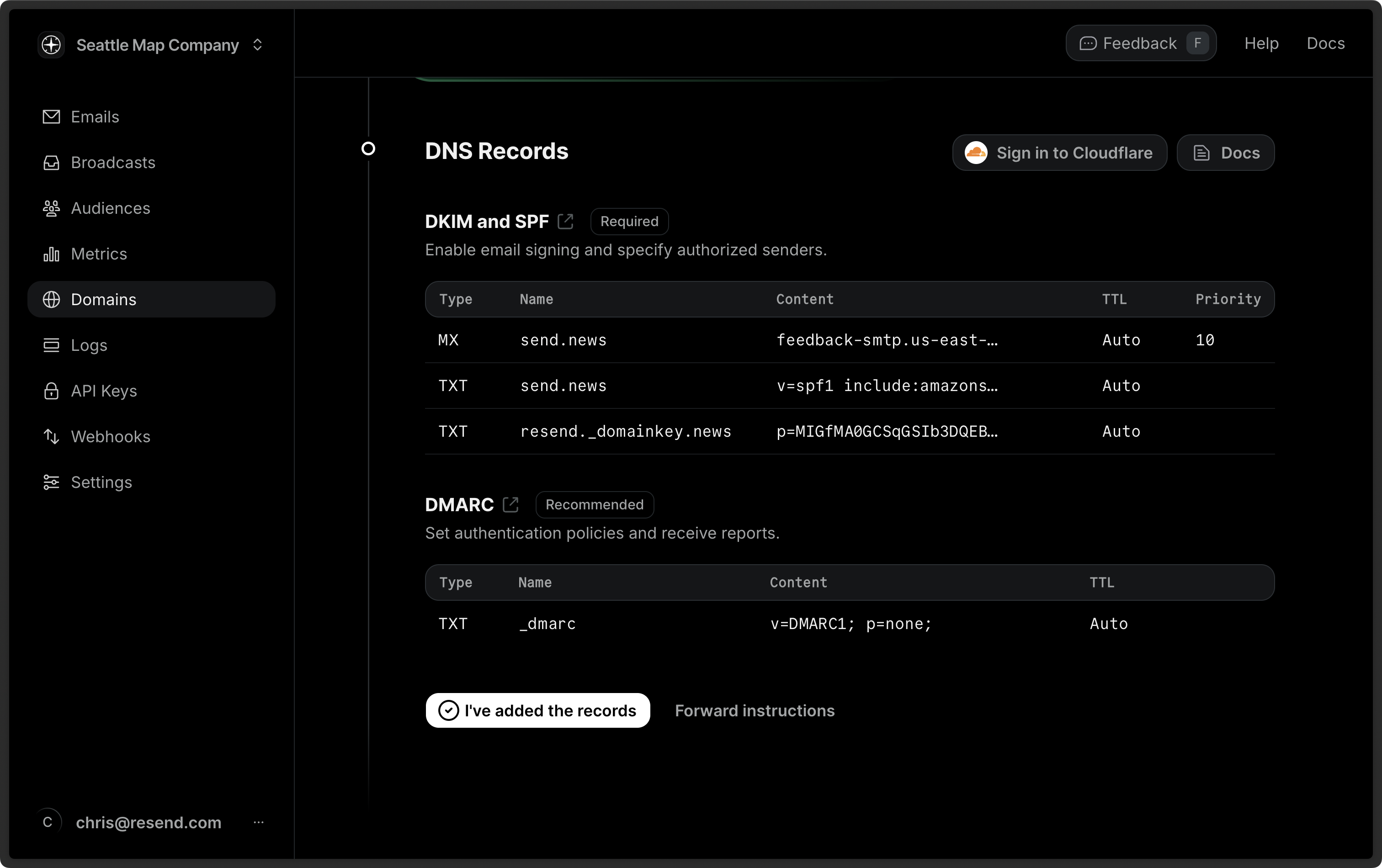
- Click on I’ve added the records to begin the verification process.
- Wait for the verification to complete (usually takes 5–10 minutes)
Resend requires you own your domain (i.e., not a shared or public domain).
Adding DNS records gives Resend the authority to send emails on your behalf
and signals to the inbox providers that you’re a legitimate sender.
Send Auth Emails with Resend
If you want to use Resend to send your Supabase Auth Emails, you have three options:- Using the Resend Integration: simplest, but less customizable email templates.
- Custom Auth Functions: more customizable email templates, but requires more setup.
- Self-hosted with Custom SMTP: only for those self-hosting Supabase.
1. Using the Resend Integration
Resend includes a pre-built integration with Supabase. Connecting Resend as your email provider will allow you to send your Supabase emails (i.e., password resets, email confirmations, etc.) through Resend.- Open the Resend Integrations settings.
- Click Connect to Supabase and login to your Supabase account if prompted.
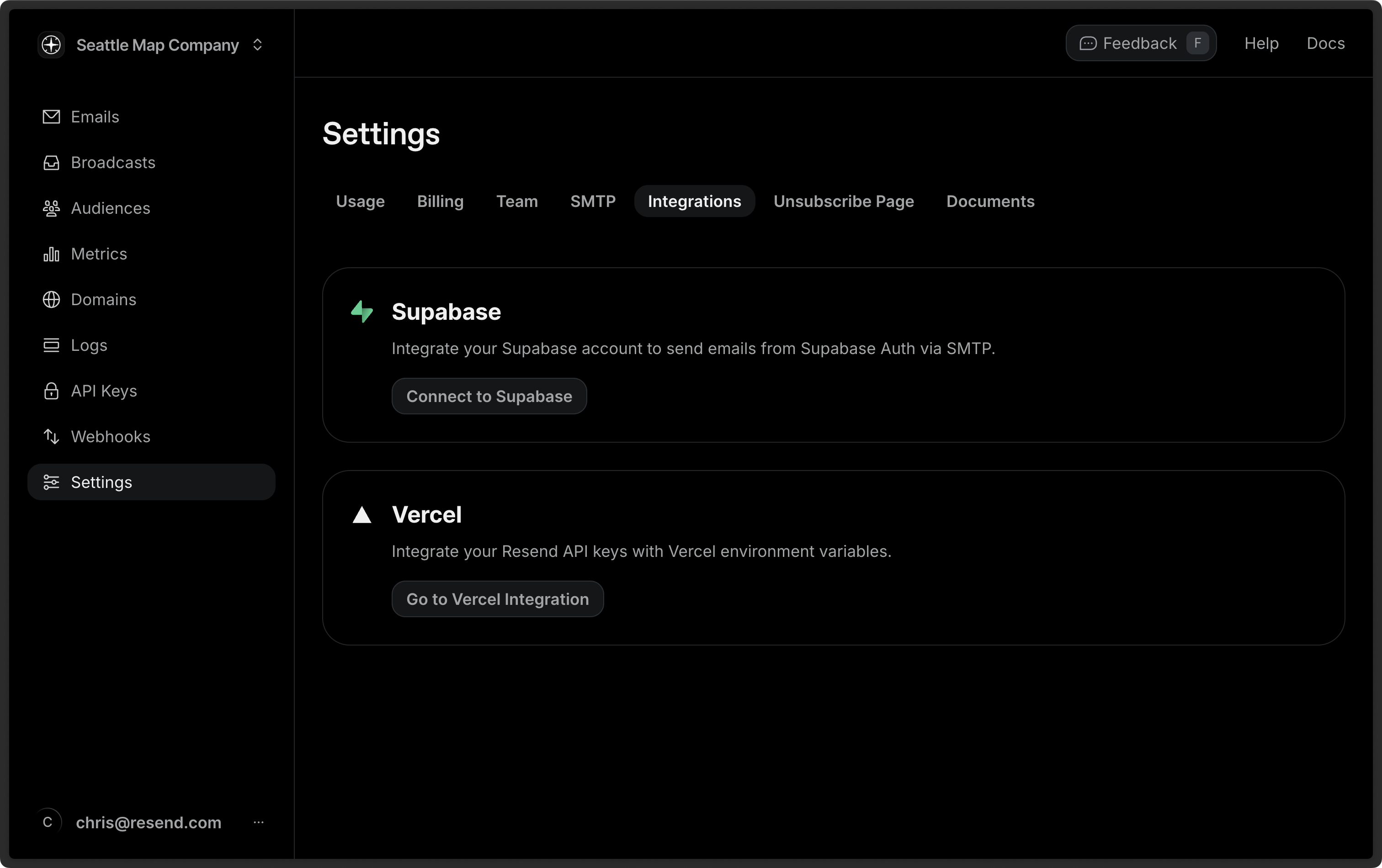
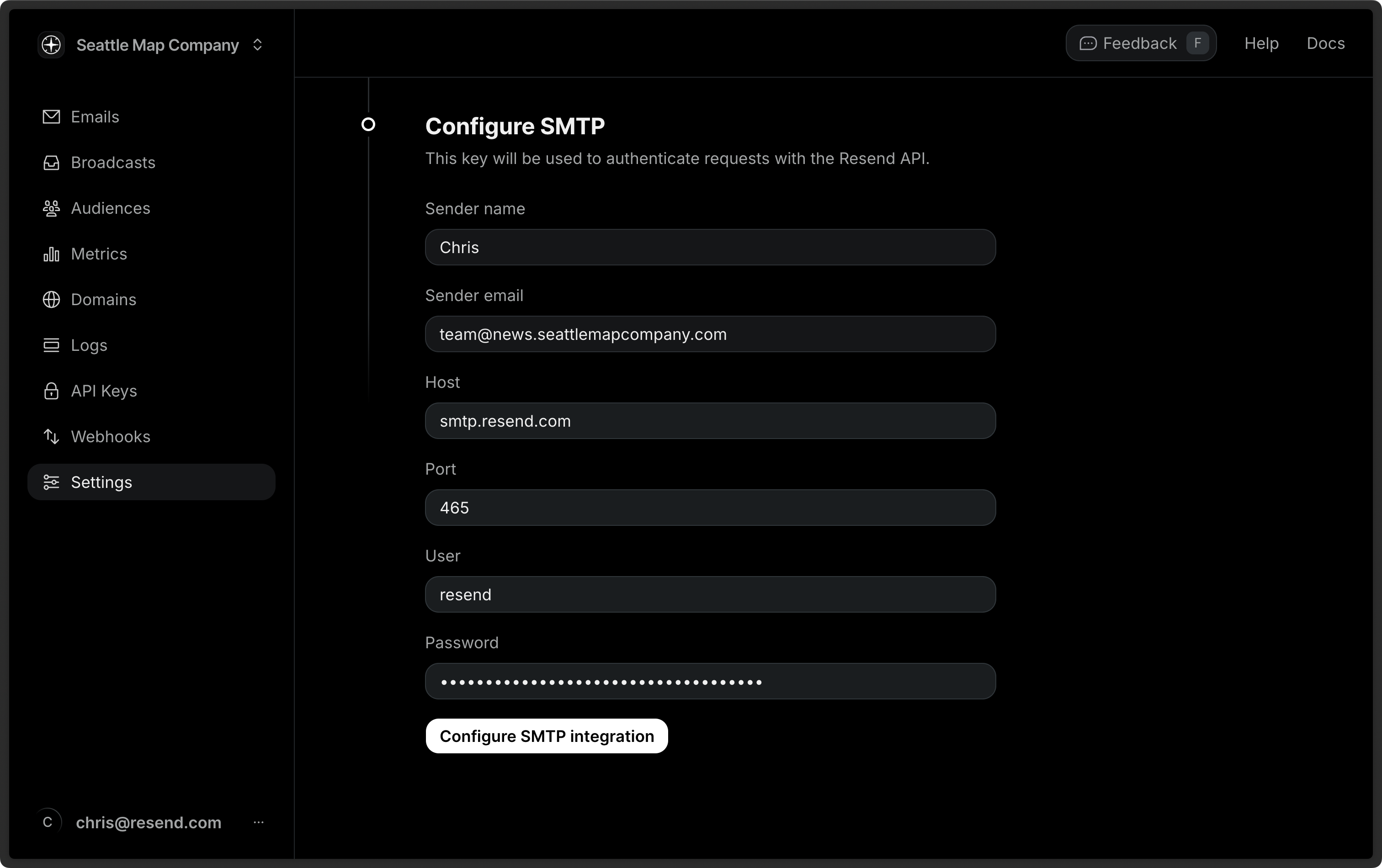
- Select a project and click Select Project, then select your domain and click Add API Key. Resend will create an API key for you. Add a sender name and click Configure SMTP Integration.

Supabase has a rate limit on the number of emails you can send per hour and
requires you to connect a custom email provider for more than 2
emails/hour. Once you set
Resend as your email provider, you can send additional emails (by default, 25
emails/hour, although you can change the rate limit in your project’s
authentication
settings).
2. Custom Auth Functions
Benefit of using custom auth functions:- More control over the email sending process since you control the sending function.
- More control over the email template using React Email or Resend Templates.
Supabase Auth Hooks with Resend Templates
See the full source code.
3. Self-hosted with Custom SMTP
If you’re self-hosting Supabase, you can use a custom SMTP server to send your emails. Learn more here.Send Emails with Supabase Edge Functions
If you’re using Supabase Edge Functions, you can add email sending to your function by using the Resend Node.js SDK. You can use these functions for Auth Emails (as shown above) or for other emails (e.g., app notifications, account activity, etc.). First, make sure you have the latest version of the Supabase CLI installed.1. Create Supabase function
Create a new function locally:2. Edit the handler function
Paste the following code into theindex.ts file:
index.ts
3. Deploy and send email
Run function locally: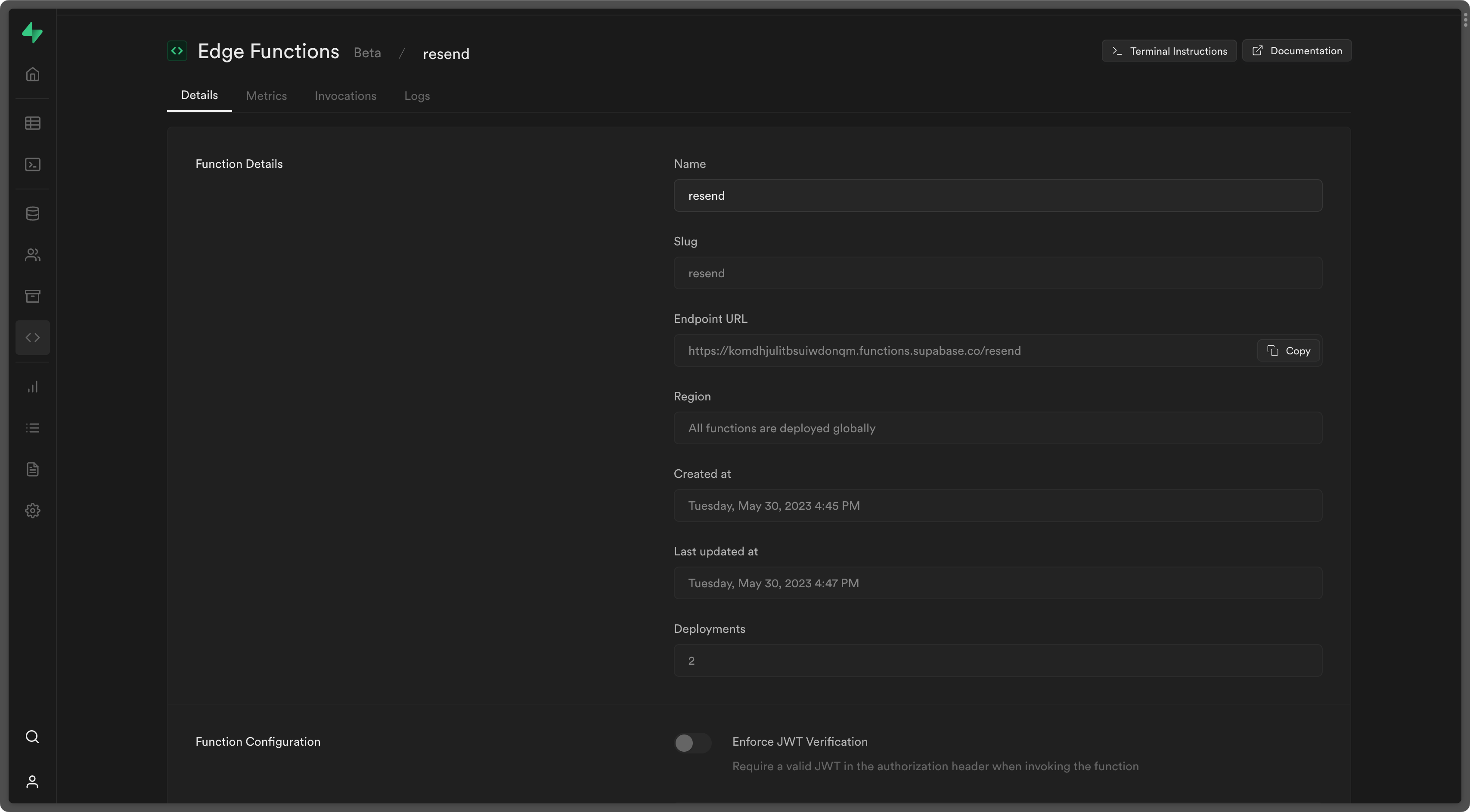
4. Try it yourself
Supabase Edge Functions Example
See the full source code.